The Document Hub
One inbox for every receipt, bill and statement — upload, scan on your phone or email documents in, see what was read off each, and file it against the transaction it proves.
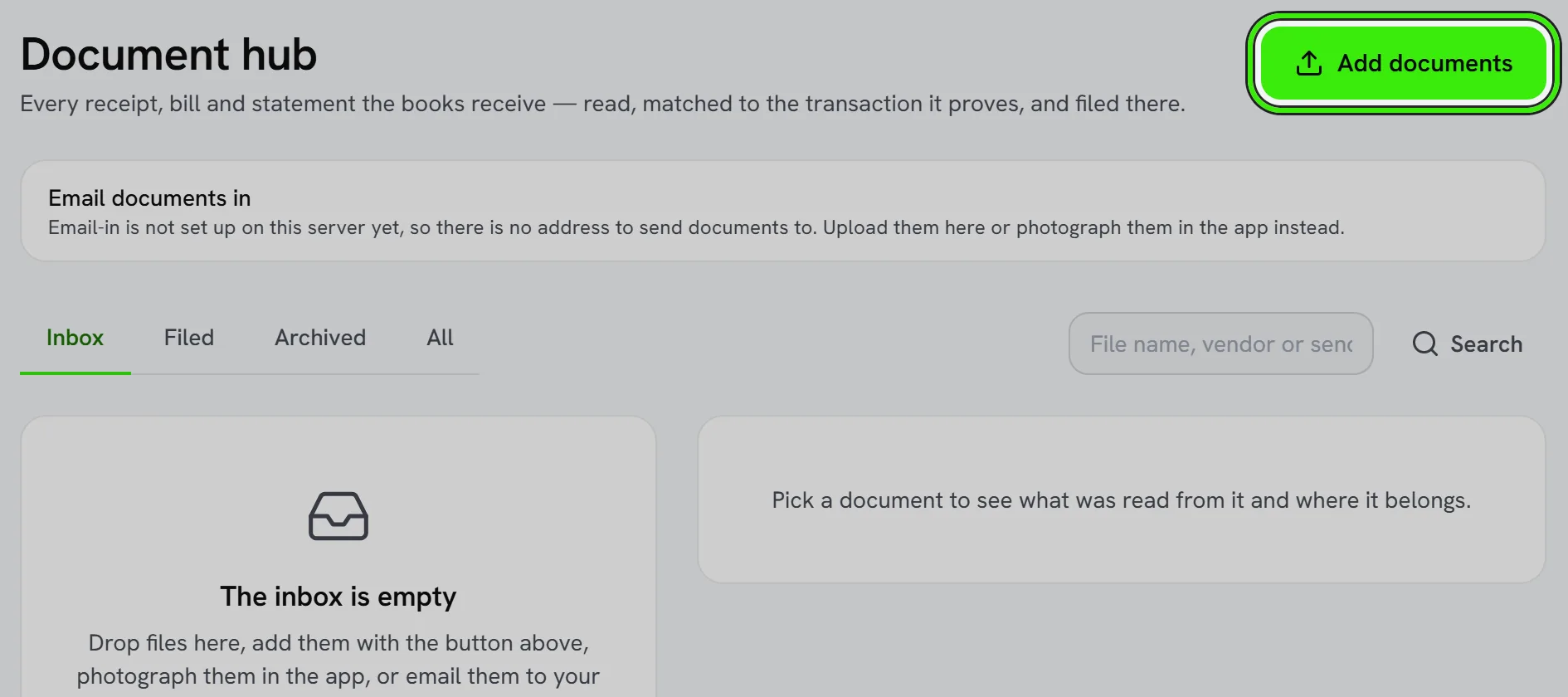
The Document Hub (Accounting → Money) holds paperwork until it is filed against the bill, expense claim, invoice or order it belongs to. It is on the website and in both phone apps, where the camera is the quickest way in.
Getting documents in
- Upload files — several at a time — or drag them onto the page on the website.
- Scan a document with your phone — several pages become one PDF — or pick photos or files, several at a time.
- Email it in. Turn on your books’ private email-in address and forward bills and receipts to it.
Photos and PDFs are read for the vendor, date and total, with how sure the reading is, and a photo is shown on the document itself so you can check the reading against the paper. Spreadsheets and text files are kept and filed as they are — there is nothing to read figures from. The same file sent twice is kept once.
Filing a document
- Where it probably belongs: a bill, expense claim or bank line with the same amount within ten days, with the reasons shown. Nothing is filed until you press File here.
- Make a bill from it — you confirm first, and it is posted from what was read.
- Make an expense claim from it; it goes to expense approvals like any other.
- File it against anything else by hand: a bill, an expense claim, an invoice, a purchase order or a sales order.
A filed document is part of the record and cannot be deleted — unfile it first if it was filed by mistake. Anything else can be archived, restored or deleted.
The email-in address
Turn it on and your books get their own address, made from your company’s name — something like [email protected]. Give it to your suppliers, or forward bills and receipts to it yourself, and each one lands in the inbox within seconds and is read like an upload: a photo or a PDF shows the vendor, date and total, ready for you to file. Attachments become documents; a message with no attachment keeps its text as one, because a supplier who pastes an invoice into an email has still sent an invoice.
- One email can carry several files, up to 25 MB in all, and each file can be up to 15 MB. Anything larger is sent back to the sender with the reason, so they can send a smaller copy.
- A sender can add a tag after a plus sign — [email protected] — and it still arrives in the same books.
- If two companies have the same name, the second gets a number on the end, such as brightline-plumbing-2. Names that mail systems reserve, such as support or billing, are never used on their own.
- An earlier form of the address — books.brightline-plumbing@… or books-4f2a9c71de@… — keeps delivering, so nothing a supplier already has stops working.
Anybody who has the address can send to it, so you can replace it at any time — the old one stops delivering at once — or turn it off. Nothing is filed against a transaction by a machine: a document arrives in the inbox and a person decides where it belongs.
The address appears only once this Seayora server can receive mail for your books. Until then the hub says so and names what is missing, and uploading, scanning on your phone and picking a file all still work.
Frequently asked questions
Does Seayora file documents automatically?
No. It suggests where a document probably belongs and why. A person files it.
What if a figure was read wrongly?
Edit the draft before you save it, or void a bill made from it and enter it by hand. What was read is a suggestion, not a fact.
Can my assistant see the inbox?
Yes, read-only: what arrived, what was read and whether it is filed. It cannot upload, file or delete anything.
Related guides
Related features and guides
- Accounting Suite Overview — Documentation. A tour of Seayora’s accounting and bookkeeping tools — invoicing, bills, ledger, bank feeds, reports, automations, and the AI analyst.
- Accounting on your phone — Documentation. The whole accounting suite — the Expense Center and the full ledger — in the Operations tab of the iPhone and Android apps.
- Expense Inbox — Email or Drop Invoices and Receipts Into Your Books — Documentation. A private email address and a drop zone for supplier invoices and receipts: each one is read into a draft, waits in the inbox, and becomes an expense or a bill only when you file it.
- How to Hand Your CPA a Clean Rental File in One Afternoon — Guide. A checklist for landlords: the income, expenses, documents, depreciation history and year’s changes a preparer needs, gathered in four hours.
- Owner Portals & Reporting — Feature. Owner portals and multi-property accounting let property owners see performance and financials for their assets without a monthly email from you.
- Document Storage & Templates — Feature. Store leases, addenda, inspection photos, receipts, and templates securely, with the right people able to reach the right documents at any time.