Linking to an exact button, tab or section
Copy a link that opens seayora.com at a specific button, tab or section — and what such a link will and will not do.
Every button, tab and section on seayora.com has an address. A link can take somebody straight to it: the page opens, scrolls to that control and rings it for a few seconds. Instead of “go to Settings, then Security, then scroll down”, you send one link.
Copying a link
- Hold Alt and Shift (Option and Shift on a Mac) and click any button, tab or section. The link is copied and the spot flashes so you can see what you copied. The click does not press the button.
- With a keyboard: move to the control with Tab and press Alt + Shift + L.
- The link keeps the page you are on, its filters and its open tab, and adds the control.
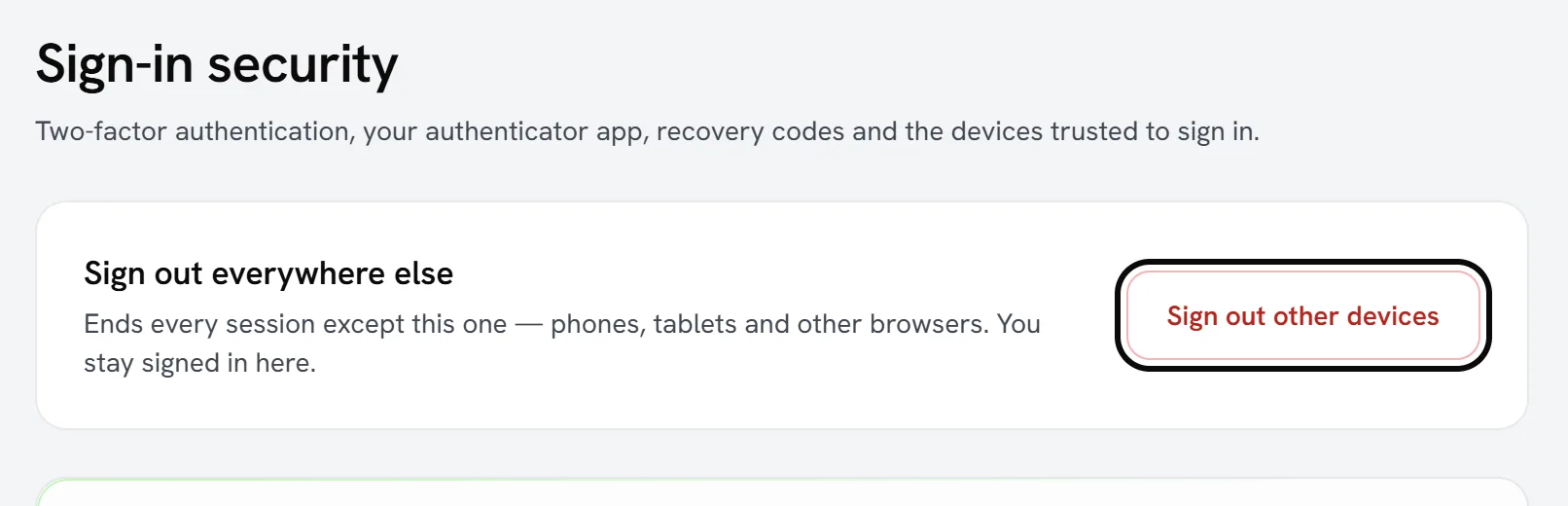
What the link does when it is opened
- It opens the page, waits for it to finish loading (up to ten seconds), scrolls to the control and outlines it.
- If the control is a tab, a menu or an expandable section, it opens it as well.
- If the control is not there — it has moved, or the account opening the link cannot see that part of the page — it says so. You are still on the right page.
- Somebody who is not signed in is asked to sign in first, like any other link into an account.
What a link will never do
A link can show somebody something. It can never do something for them. It never presses a button that pays, charges, sends, signs, approves, declines, cancels, deletes or submits — only tabs, menus, expandable sections and links to other pages. Everything else is highlighted and left for the person to press.
Tabs stay in the address bar
When you switch tabs on a page, the tab is added to the address bar, so reloading the page or sharing its address keeps the tab you were on. A link that opens a tab does the same, so the address you land on keeps that tab too. The first tab of a page is never added, and a tab inside a pop-up never is.
The parts of a link
| Part | What it means |
|---|---|
| sy | Which control: its section and its name, for example units.add-unit. |
| sy_n | Which one, when several share a name — the third “Edit” in a list is sy_n=3. |
| sy_do=open | Also open it. Only honored for tabs, menus and expandable sections. |
| sy_tab | Which tabs are open on the page. |
For support
Sending a customer to the exact control is usually the fastest way to help. A link copied on your screen works on theirs as long as they can see the same page. A control on a single record — one lease, one unit — needs the link copied from that record, because the address of the record is part of the link.
Frequently asked questions
Does opening a link change anything in my account?
No. A link can open a tab, a menu or an expandable section, and it can take you to another page. It never presses a button that changes anything.
Why did a link say the spot is not on the page?
Either the control has moved or been renamed since the link was copied, or the account you are signed in with cannot see that part of the page. You are on the right page either way.
Do these links work in the iPhone and Android apps?
They are a website feature. The apps have their own navigation.
Is opening a link recorded?
That a link was opened and whether it found its spot is counted like any other use of the site — see “What the website measures”. It is how broken links get found.
Related guides
Related features and guides
- What the website measures, and how where you live changes it — Documentation. The three levels of website measurement, every signal and why, what is never collected, and the level for every US state.
- Siri, Shortcuts, Control Center & App Shortcuts — Documentation. Open Seayora screens, open one conversation, search and send a message with Siri, Spotlight, the Shortcuts app, the Action button and Control Center on iPhone — plus what Siri AI on iOS 27 can do with your conversations, what it is and is not told, and the shortcuts on the Android app icon.
- The Seayora Assistant: Asking About Your Account in Plain Words — Documentation. How to ask Seayora about your account in plain words — typed or spoken — on the website and in the iPhone and Android apps, what the assistant can look up, how anything it prepares waits for your approval, what it will not do, how your conversations are kept, and how they help Seayora AI improve.
- Rent Autopay and ACH Debits: The Federal Authorization Rules — Guide. What Regulation E requires before rent is debited automatically: a signed authorization, a copy, stop-payment rights and notice when the amount changes.