App Preferences for Contractors
What each App preference does — your dashboard, team, time clock, jobs, operations and notifications — and where each one takes effect.
Settings → App preferences (on the website, and in Business settings on the iPhone and Android) is one list of choices about how Seayora runs for your company. Every preference on it is acted on by Seayora — none is only stored. The same list, in the same words, is on all three.
Dashboard
- Open on — the view your dashboard opens first when you sign in: the overview, your jobs, your invoices, or your team.
- Figures cover — whether "done" and "earned" on the dashboard count today, this week, this month or this year.
- Refresh — how often an open dashboard reloads itself while you are looking at it.
- Show money, and show the time-clock card — hide either card from the dashboard. Home-screen widgets are not affected.
- Compact cards — a denser layout that fits more on a screen.
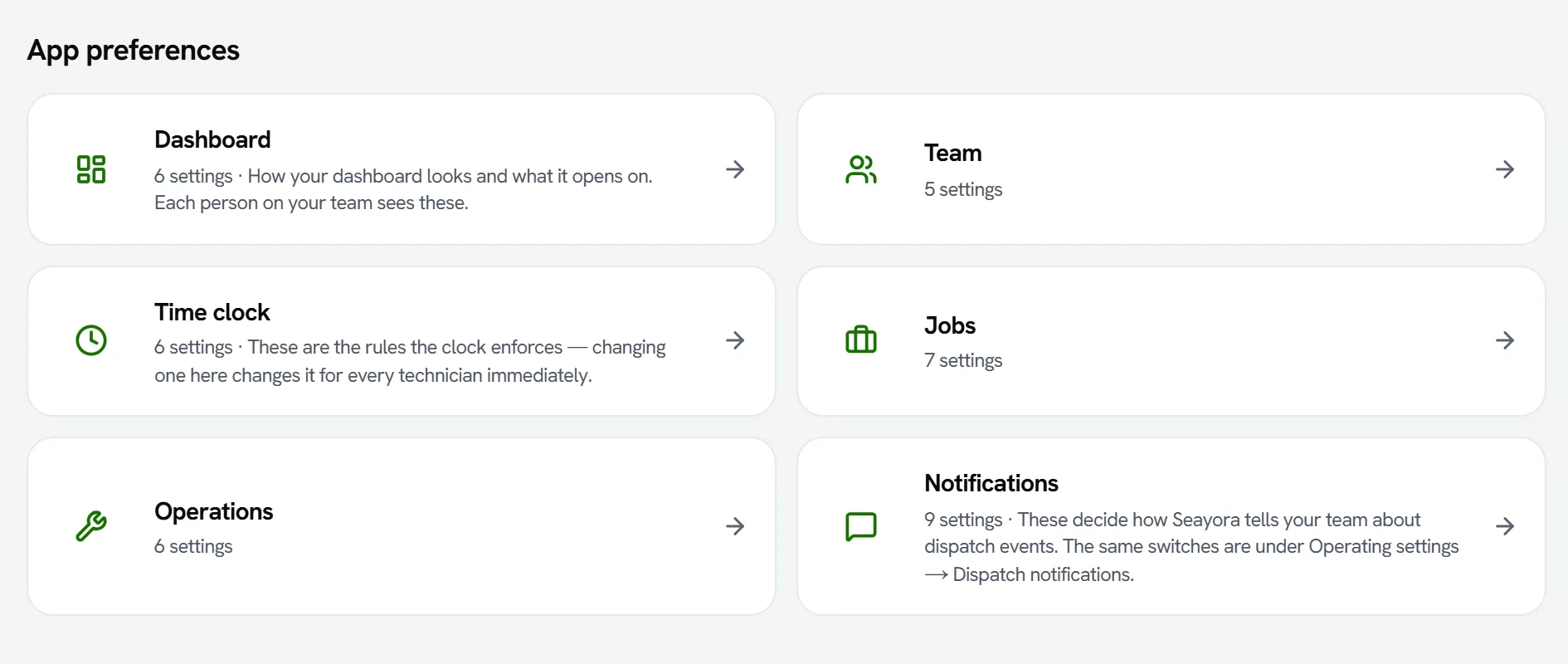
Team and time clock
The roster order, whether people who have left are listed (every picker that assigns work leaves them out regardless), the pay period, the overtime threshold, and the clock rules — rounding, the overtime rate, automatic clock-out, break deduction, week start and whether a clock-in records a location. The clock rules take effect for every technician the moment you save.
Jobs
- Open the job list on — every job, open work, unassigned jobs or today's. The filters above the list still switch between them.
- Sort by — newest, urgency, scheduled date, or distance from your yard (distance needs your yard's location, set in Route planning; without it the list says so and sorts by urgency).
- A job takes, when it does not say — the length a new job is estimated at, also used by route planning.
- Assign new jobs to the nearest free technician — a new job goes to the technician who is available and closest to it by where they last clocked in today. It says so in the job's history, and you can reassign it.
- Require a completion photo, and hold completion until the photos are in.
- Tell the office when a job comes in.
Operations
- Low-stock level for new items — the level a part is flagged at when it has none of its own.
- Order restocks automatically — when an invoice takes parts to their low-stock level, a restock order is raised and you are told. It is an order, not a delivery: stock moves when you record the delivery.
- Invoices due in — the payment terms new invoices carry.
- Your tax rate where none is on file — used only for an address Seayora holds no published rate for, and printed on the invoice as your own rate, never as a published one. Leave it empty and such an invoice cannot be issued.
- Price after-hours and weekend work higher — estimates for work outside your shift hours, or at a weekend, use your after-hours rate (or your emergency multiplier), and the estimate says which.
- Measure distances in — miles or kilometres, on routes and the job list.
Notifications
Email, text and push switch those channels on or off for dispatch notifications; the sound switch makes phone notifications silent. Quiet hours hold non-urgent emails and texts overnight — never an emergency. The automatic reply answers a customer who writes while you are set to busy, away or do not disturb, or inside quiet hours, once per conversation every 12 hours, and it is marked as automatic. It never answers your own team.
Frequently asked questions
Do my technicians see these?
The dashboard choices apply to everyone in your company. The clock rules apply to every technician immediately. Only the account owner can change them.
Will the automatic reply answer every message?
No. At most once per conversation in 12 hours, only while you are busy, away, on do not disturb or inside quiet hours, never to your own team, and not when one of your automations is already answering.
Related guides
Related features and guides
- Dispatch Notifications — Documentation. Which events tell whom, through which channel, what quiet hours do and do not hold, and exactly what “push” means on each device.
- Dispatch & Work Orders — Documentation. How jobs are routed to service pros, how work orders track status, and how approval limits keep spending in check.
- Job Costing — Documentation. How to tie income and costs to individual jobs so you can see true profitability by job, customer, or trade.
- Mobile Field App & Push Notifications — Feature. A mobile-first field experience with push notifications for dispatch, so technicians get assignments, capture photos, and clock in without going back to an office.
- Technician Scheduling, Shifts & Skills — Feature. Shift scheduling, PTO tracking, and per-technician skill profiles, so dispatch routes work to someone qualified and on the clock.
- Portfolio Analytics & Dashboards — Feature. Customizable dashboards and portfolio reporting covering occupancy, vacancy, financial performance, and team metrics across every property you manage.