The Crew Schedule: Shifts, Time Off, Pay Periods & Labor Budgets
How to build a crew schedule, publish it, see planned hours against what was actually worked, approve time off, freeze a pay period for payroll, and hold a job to a labor budget.
The Time Clock records what happened. The Schedule records what is meant to happen — and Seayora reconciles the two for you, so every planned shift shows the hours that were actually punched against it and you can see, in one place, who turned up, who was late and who did not come at all.
Building the schedule
Open Schedule under Work. The board shows one week at a time, one column per day, with every shift on it. Add a shift with who is working it, when it starts and ends, an unpaid break if there is one, and optionally the job it is for. Seayora shows you the paid hours as you type, so the number on the shift is never a guess.
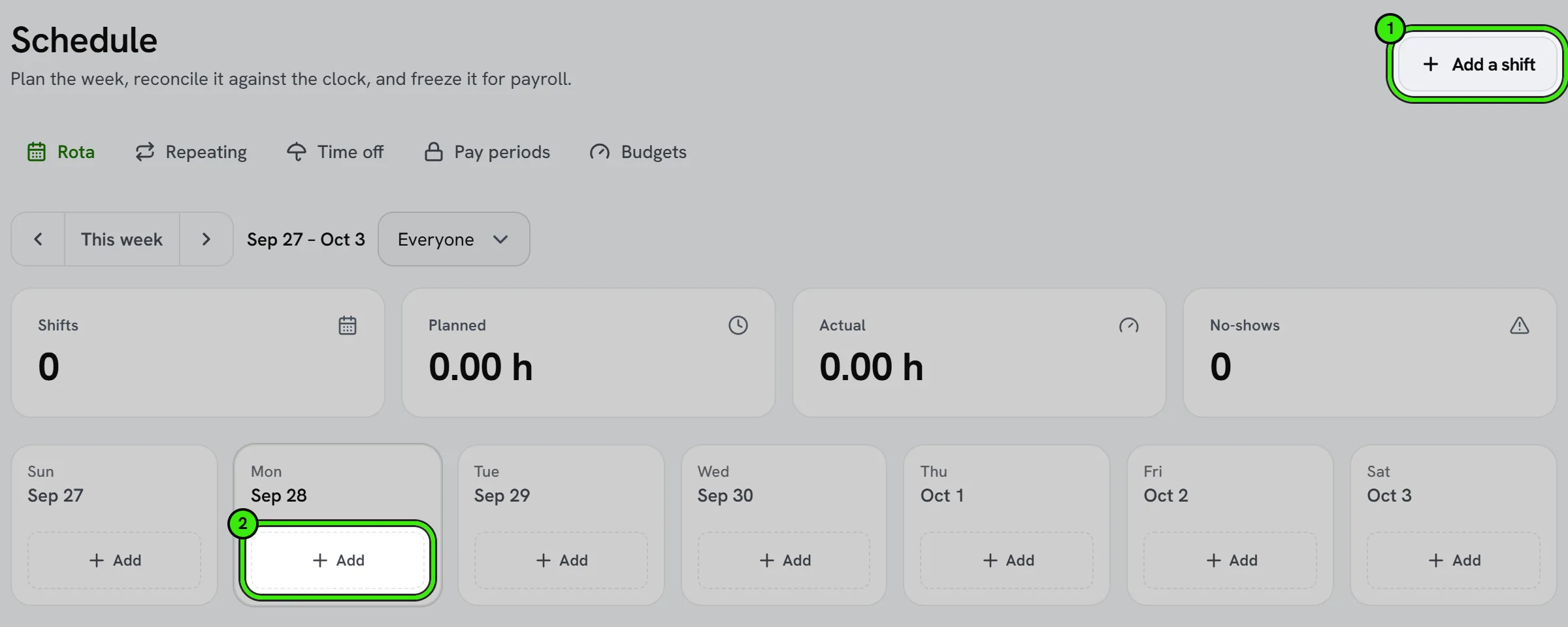
- A shift that overlaps another one for the same person is saved and flagged, not refused — split shifts and deliberate handovers are real, and being blocked by a scheduler is worse than being warned by one.
- Linking a shift to a job is what lets the labor budget below work, and puts the planned hours on the job’s costing.
- Repeating shifts (Mon–Fri, 08:00–16:00, until March) are set up once and create real shifts on the board. Each one can then be moved, swapped or canceled on its own — the pattern never puts it back.
Publishing is what makes it real
A new shift is a DRAFT. Only you can see a draft; your crew sees nothing until you press Publish. Publishing the week emails and notifies everybody with a shift in it, telling them how many they have. That is deliberate: a schedule people arrange childcare around should not change silently, and one that does is a rota they stop trusting and start checking by phone.
Ending a repeating pattern stops it creating NEW shifts. Shifts already on the board are left in place, because people have already planned around them — canceling those is a separate decision you make shift by shift.
Planned against actual
Every shift on the board carries what happened to it, worked out from the punches on the clock:
| Outcome | What it means |
|---|---|
| Scheduled | Booked, and it has not started yet. |
| On the clock | Somebody is working this shift right now. |
| Worked | They turned up and clocked in on time. |
| Late | They clocked in more than your grace period after the planned start. |
| No-show | The shift ended with no punch against it at all. You are alerted once, while the day can still be rescued. |
| Time off | Approved leave covers this day. |
| Cancelled | Called off. It stays on the board so the change is visible. |
Beside each one is the variance — the hours actually worked minus the hours planned. A crew consistently running two hours over on a two-hour job is a pricing problem, not a payroll one, and this is where you see it.
Time off
Crew members request time off from the app: the type, the dates, and the hours (a half day and a full week are both normal, so the hours are theirs to state — leave it empty and Seayora works them out from the dates). The request goes straight to you, and they can withdraw it while it is still waiting on a decision.
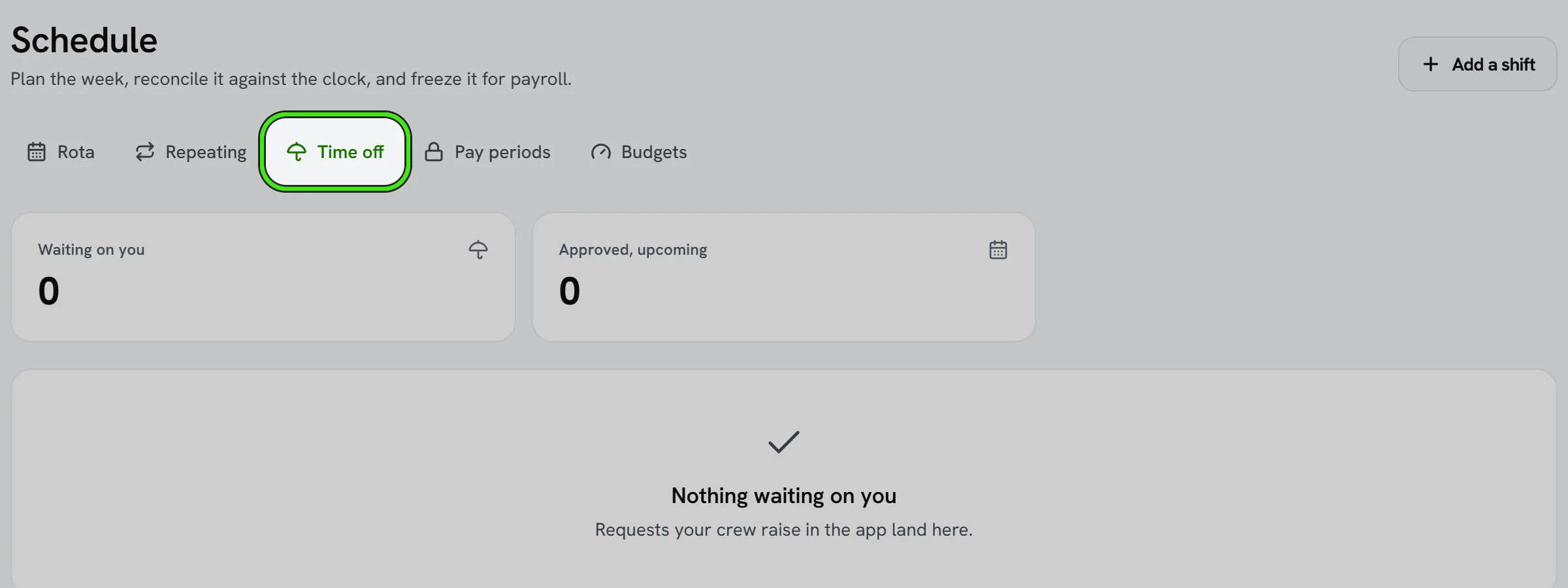
- Approving or denying emails them from the same action. A decision they find out about by opening the app next Tuesday is not a decision that was communicated.
- Denying REQUIRES a reason, and the reason is what they are sent. “Denied” with no explanation is a conversation you will have anyway, worse.
- Approved leave is shown on the schedule, so a shift on a day somebody is off reads as Time off rather than a no-show.
- Vacation and sick allowances are per year, set for the whole company under Rules and overridable per person. Leave one empty and nothing is tracked for that kind — which is NOT the same as somebody having none left, and your crew is told exactly that.
Pay periods
Payroll is run against a fixed set of hours, and those hours must not move afterwards. Locking a pay period freezes every timesheet inside it: no edits, no manual entries, no new punches dated into it.
- Pick your cadence under Rules — weekly, every two weeks, twice a month, or monthly. The two-weekly cadence needs a start date so Seayora knows which fortnight is which.
- Locking REFUSES while anything inside the period is still awaiting approval, and tells you how many are in the way. Freezing an undecided shift would leave hours that can never be paid and never be corrected.
- The totals are recorded AT the moment you lock. That is the figure somebody was paid against, and it is kept even if you unlock the period later and correct something.
- Unlocking is allowed, and the figures it was locked at are kept, so “what did we actually pay in March” stays answerable.
Labor budgets on a job
Give a job a number of budgeted hours and Seayora tracks the burn-down against the time your crew actually clocks to it. You are alerted once when it crosses your warning threshold, and once more when it goes over — not on every punch afterwards.
A job with no budget set is never chased. An empty budget means “no budget”, not “zero hours allowed”, and the screen says so rather than showing an empty bar that reads as 0% used.
What each rule actually does
| Rule | Effect |
|---|---|
| Count somebody late after | Minutes past the PLANNED start before a shift reads as Late. |
| Call it a no-show after | Minutes past a planned start with no punch before you are alerted. One alert per shift. |
| Let them clock in early by | A punch earlier than this against a published shift is refused, with the real start time in the message. Zero allows any early start. |
| Warn on a shift running past | You are told about a long day while it can still be acted on — set below your auto clock-out limit. |
| Book repeating shifts ahead by | How far ahead a repeating pattern creates shifts. They arrive as drafts. |
| Require a note when there is no job | Turns unattributed time into something you can review. Only applies when a job is not already required on every punch. |
| Warn on a labor budget at | The share of a job’s budgeted hours that triggers the first alert. |
| Show pay figures to your crew | Off removes every dollar amount from a technician’s own clock. The figures are stripped on the server, not merely hidden in the app. |
On every device
Crew members see their own shifts, their allowance and their requests in both mobile apps and on the website, and can request time off from any of them. Owners can read the week, publish it, decide requests and lock a pay period from a phone. Creating and editing individual shifts, setting up repeating patterns and setting a job’s labor budget are on the website.
Frequently asked questions
Can my crew see a shift before I publish it?
No. A draft is visible only to you. Publishing the week is what makes it visible, and it notifies everybody with a shift in it.
Do I have to use the schedule to use the time clock?
No. The clock works with no schedule at all — a technician can always punch in. The schedule adds the plan to compare it against.
What happens if somebody clocks in for a shift that has not started yet?
If you have set an early clock-in grace period, a punch earlier than that against a published shift is refused, and the message tells them when the shift actually starts. With no grace period set, any early start is allowed.
Does approving time off cancel the shifts on those days?
No, and that is deliberate — the shift stays on the board and reads as Time off rather than a no-show, so the gap in cover is still visible to you. Cancel or reassign it if somebody else needs to work it.
Why will Seayora not lock my pay period?
Something inside it is still awaiting approval. Approve or reject those shifts under Timesheets first — you are told how many there are.
Can I still fix a timesheet after I have locked its period?
Not while it is locked. Unlock the period, correct it, and lock it again. The totals from the first lock are kept, so you can still see what was paid.
I left the vacation allowance empty. Does my crew see zero?
No. They are told that no allowance is tracked, and are shown the hours they have taken. Zero would say they have none left, which is a different — and wrong — answer.
Is a labor budget a hard stop?
No. It never blocks a punch. It alerts you once at your warning threshold and once when the job goes over, so somebody can decide what to do about it.
Related guides
Related features and guides
- The Time Clock: Punches, Breaks, Overtime & Approval — Documentation. How technicians clock in and out against a job, what the geofence and photo rules do, how overtime is calculated, how an owner reviews and approves hours, and how to read the clock-in map.
- Job Costing — Documentation. How to tie income and costs to individual jobs so you can see true profitability by job, customer, or trade.
- Payroll Posting — Documentation. How payroll results post into your accounting so wages, taxes, and liabilities land in the right accounts.
- Contractor Payroll & Wages — Feature. Wage tracking, payroll records, W-2 export and geofence-verified hours — driven by the same timesheets that feed job costing. Seayora keeps the record; you pay your crew the way you already do.
- Timesheets & Labor Tracking — Feature. Technicians clock in and out against a job, hours flow into job costing and invoicing, and you see real labor cost per job instead of an estimate.
- Technician Dispatch & Live Arrival Times — Feature. Plan each technician’s route, tell the customer when they set off, and send a live arrival link that says how the time was worked out — without tracking your crew.