Automations — scripts that answer for you
Build a branching script that triages a repair report, grades how urgent it is from the answers, sends safety instructions the moment they matter, and opens the work order at the right service level.
An automation is a script that answers somebody who writes to you, in your own name, and asks the questions you would ask. It is not a chatbot: it never invents an answer, it only follows the steps you wrote. What it produces is an ordinary work order — the same record the maintenance board, the SLA clock and job costing already use — with everything it collected already on it.
It is for landlords, management companies and service businesses. Automations live under Messages → Automations on the website, and on both phone apps.
What a script is made of
| Step | What it does |
|---|---|
| Say something | A line of text, then it carries on. |
| Ask with options | The one that does the triage. Each option can raise the urgency, carry safety instructions, and send the conversation somewhere different. |
| Ask them to type | A typed answer, checked against the kind of thing you asked for — a phone number that is not a phone number is asked for again. |
| Ask for a photo | Waits for an attachment. A photo of a leak very often decides the trade before anyone drives out. |
| Read it back | Shows a summary of everything collected and asks them to confirm before you act on it. |
| Decide which way to go | Says nothing. Looks at the answers so far and jumps. This is what lets one script handle a dripping faucet and a burst main. |
| Do something | Opens the work order, pages the on-call, applies a label, assigns it, books a callback. |
| Hand over to a person | Stops the script and tells your team somebody is waiting. |
| Finish | Ends it, with an outcome you can report on. |
Urgency only ever goes up
Every option can grade the conversation — Low, Normal, Urgent or Emergency. The grade only ever climbs. If somebody says the water is running into a socket and then says they have put a bucket under it, it stays an emergency.
That is deliberate, and it is the single most important rule in the engine. A script written by a human will ask a calming question after an alarming one, because that is how people talk; an engine where the last answer wins would file that conversation as routine and nobody would go.
The grade decides the work order’s urgency, its response and resolution targets, whether the on-call number is paged, and what the person is told to do while they wait. Every run records WHY it was graded that way, in the words of the option they chose.
Safety instructions go out immediately
Instructions belong on the OPTION, not on a later step. “Turn the water off at the stopcock if you can reach it safely” is worth a great deal the instant somebody says the water is pouring out, and nothing at all after four more questions about whether they have pets.
The ready-made scripts already do this. If you write your own, put the instruction on the option that describes the dangerous answer.
What starts one
| Trigger | When it runs |
|---|---|
| First message | Once, the first time somebody ever writes to you. |
| A word or phrase | When what they wrote contains one of your keywords. The most specific match wins, then the highest priority. |
| Outside your hours | At most once every 12 hours per conversation, so nobody waits on a silent inbox. |
| Only when you start it | Never on its own. You pick it from a conversation. |
A keyword has to be at least three characters. Shorter ones match inside ordinary words — “hi” fires on “this” — and a resident triaged for a leak because they wrote “looks fine” is worse than no automation.
The ready-made library
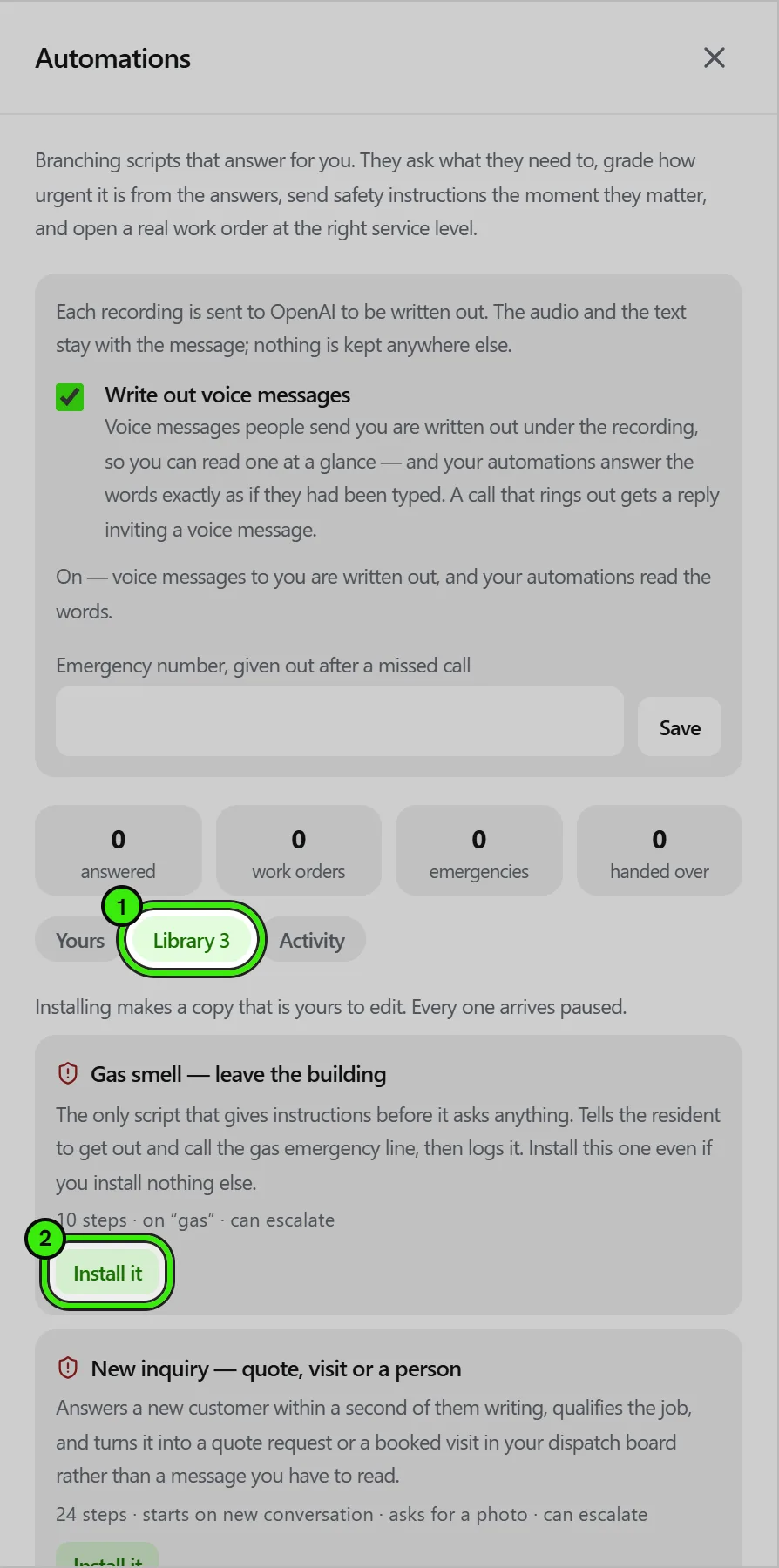
Fourteen scripts written for the calls that actually come in. Installing one makes a copy that is yours to edit; there is no link back, so nothing we change later rewrites what your residents are asked.
| Script | What it is for |
|---|---|
| Water leak — full triage | Grades a leak from a slow drip to a burst main in six questions and sends the shut-off instructions the moment it needs to. |
| No heat or no hot water | Separates a tripped boiler from a building outage, and asks who is in the home — a baby or an elderly resident in the cold changes the answer. |
| Gas smell | The only script that gives instructions before it asks anything. Install this one even if you install nothing else. |
| Electrical fault | Tells a tripped breaker from sparks and a burning smell, and gives the right instruction for each. |
| Blocked drain | Tells an overflowing toilet from a slow sink — one is a same-day sanitation problem, the other is a Tuesday. |
| Lockout or a door that will not lock | A door that will not lock is a security emergency, not a routine repair. |
| Appliance not working | Collects the make, model and symptom so the engineer arrives with the right part. |
| Pests | Species, extent and evidence — the three things a pest contractor asks before quoting. |
| Mold or damp | Extent, cause, and whether anyone in the home has a chest condition. |
| Resident front door | Greets a resident and routes anything — repair, rent, lease, neighbor — to where it belongs. |
| Shared areas | Keeps the hallway light and the bin store out of the emergency queue while still logging them. |
| Moving out | Takes a notice properly, and says plainly that the message is not the formal notice. |
| New inquiry (contractors) | Qualifies a job into a quote request or a booked visit in your dispatch board. |
| After hours (contractors) | Separates a real call-out from something that can wait, and pages the on-call only for the first. |
Every one of them arrives PAUSED. They speak in your name to your residents, so the first person to read what one says should be you.
Preview it before anybody sees it
Preview walks your script exactly as a resident would, using the real engine, and writes nothing — no messages sent, no work orders opened, no alerts. Answer as the customer and watch where it goes, what it grades the conversation as, and why. It is the only way to find out what your script does before a resident does.
What it will not let you save
The builder separates “this cannot work” from “this is probably not what you meant”. The first refuses the save; the second is shown beside the step and saves anyway.
| Refused | Why |
|---|---|
| A step that continues to one that does not exist | The person types an answer into silence and the conversation stops for good. |
| Steps that loop without ever asking anything | Nothing is said, nobody is asked, and it spins. |
| A keyword under three characters | It matches inside ordinary words. |
| Working hours that end before they start | The away message would answer every hour of every day. |
| Two steps with the same id | There is no way to say which one a jump means. |
Warned about, but saved: a step nothing leads to, a decision that reads an answer no earlier step saves, and — the one worth reading — a script that can grade something an emergency and has no step that opens a work order or pages anybody. That last one means the resident is told it is serious and nobody else is told at all.
While one is running
Only one automation runs in a conversation at a time. A run that nobody has replied to for 24 hours ends quietly and is recorded as abandoned — which is usually the sign that the script is too long.
If somebody cannot answer a question, the script re-asks it twice and then hands over to a person rather than repeating itself a third time. You can also take over at any point: open the conversation and press Take over, and it stops talking.
What the person sees
Options are drawn as buttons on the website, the iPhone and the Android app. The same choices are always in the message as a numbered list too, so somebody on an older build, on email, or who simply prefers typing can reply “2” and be understood.
A question you marked optional — including a photo — shows a visible way past it. Somebody standing in the dark with a burst pipe is not going to take a photograph, and a script that will not move on is one they abandon.
Why it did what it did
Every run keeps a timeline: each question in the order it was asked, what the person chose or typed, the moment the urgency was raised and which answer raised it, and what the automation did as a result. Open Automations → Activity and tap a conversation.
This is the part that matters at nine in the morning after a three o’clock call-out. The answers on their own only tell you the final state; the timeline tells you that they said the water was pouring out and running into a socket, in that order, and that is why somebody’s phone rang. It is equally useful the other way round — when a resident says nobody came, it shows exactly what they were asked and what they said.
What you can do where
| Website | iPhone & Android | |
|---|---|---|
| Install a ready-made script | Yes | Yes |
| Switch one on or off | Yes | Yes |
| Duplicate or delete | Yes | Yes |
| Change what a step SAYS, and an option’s wording, safety instructions and urgency | Yes | Yes |
| Add or remove steps, and change which step follows which | Yes | No — see below |
| Decisions and their rules | Yes | No — see below |
| Preview a script | Yes | No |
| See a run’s timeline | Yes | Yes |
| Take over a conversation an automation is answering | Yes | Yes |
Re-wiring a branching script — which step follows which, and what a decision tests — is the one part kept to the website, deliberately. It is the part where moving one connection changes four paths you cannot see at once, and getting it wrong is a resident asking a question nobody ever answers. Retyping what a step says is the opposite: it is the commonest thing you want to fix the moment you notice it, and the phones do it.
What it is not
It is not an AI assistant. It says only what you wrote, in the order you wrote it. It cannot answer a question you did not anticipate — it hands over to a person instead, which is the right answer.
It also cannot take a payment, sign anything, or decide an application. Those are things a named human does.
Related features and guides
- Doing things from a notification — Documentation. Reply to a message, call back a missed call or answer a repair straight from the notification — what each kind offers, what a tap opens, and what deliberately still needs the app.
- AI-Assisted Maintenance Dispatch — Feature. AI-assisted dispatch routing and configurable automation rules send maintenance work to the right service pro, so routine repairs never wait on a manual decision.
- Compliance, Safety & 1099s for Contractors — Documentation. Setting what your business is required to hold, how Seayora grades your certificates, and exporting 1099s for your accountant.
- Voice Messages After Hours — Documentation. Have the voice messages residents and customers send you written out under the recording, let your automations act on the words, and answer a call that rings out with an invitation to leave a voice message.
- EPA’s Lead Renovation (RRP) Rule: What Contractors and Landlords Must Do — Guide. Who needs EPA lead-safe certification for paid work in pre-1978 housing, the Renovate Right pamphlet, the minor-repair exemption and the 3-year records rule.
- Maintenance Requests & Work Orders — Feature. Tenants submit work orders with photos and video from their phone. Landlords triage, dispatch, and track every request to completion in one place.