QR Codes & Scanning
Print QR labels for equipment, units, jobs and signs, scan any code with your phone, and see everywhere a label has been read.
A QR label turns a physical thing — a boiler, a front door, a job ticket, a window card — into something a phone can point at. A resident scans the label on a radiator and reports that exact radiator, with no address to type and no guessing which unit they are in. You scan the same label and get its service history.
What you can label
- Equipment — a boiler, a lift, an appliance. Residents report a fault against that exact item; you open its warranty and its plan.
- A unit or a building — a placard by a door or in a lobby that opens a repair request for that unit.
- A job ticket — printed on a paper work order or stuck in a van, so a technician opens the job without searching for it.
- A for-rent sign — a window card that opens the public listing and the tour booker, with no account needed.
- A staff badge — so a resident can check who is at their door.
- Tools and stock, inspection points, documents, invoices, WiFi, a contact card, a link or a note.
Every label carries a code you can read
Under every QR we print is a short code like SY-7K4M-92XQ. Type it anywhere you would scan, and it does exactly the same thing. That matters more than it sounds: a label on a boiler gets greasy, scratched and painted over, and a system that only works from a clean camera read is one that fails on the day somebody is standing in a dark basement in front of something broken.
Scanning from a photograph
You do not have to be standing in front of a label to read it. On the website, on iPhone and on Android you can hand the scanner a picture instead of a camera: take one, pick one out of your photos, and on a computer drag one in or paste one straight out of a message with Ctrl+V. That is the common case rather than the rare one — most of the time a code reaches somebody because a colleague sent them a photo of it.
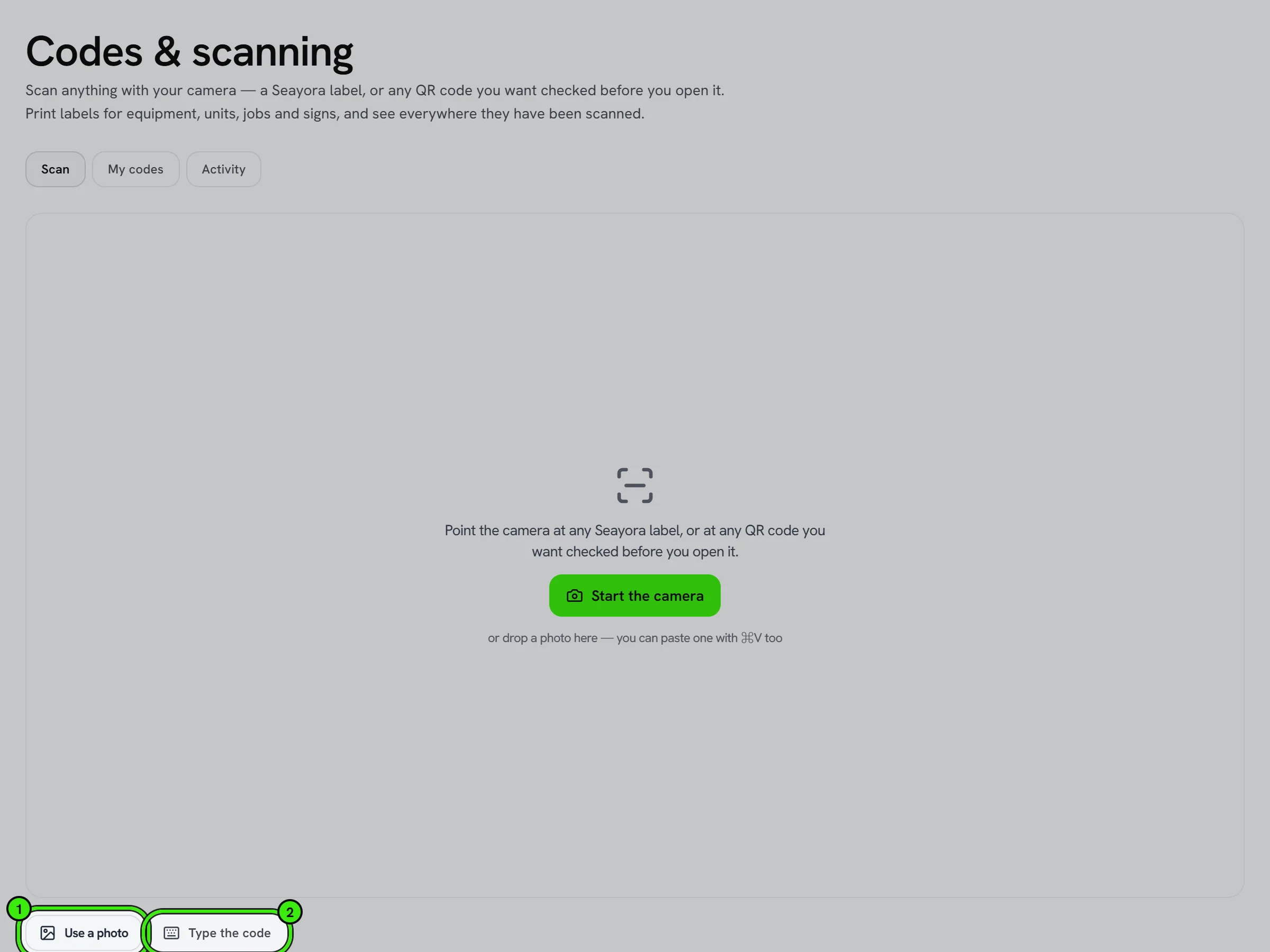
The hard version of this is a photo of a boiler with a 30 mm sticker somewhere on it, taken from a meter back under one strip light. We work through the picture in stages: the whole frame first, then the frame cut into overlapping tiles so a small label is read at its own resolution rather than the photograph’s, and finally with the brightness rebalanced tile by tile for a label lit from one side. If a code only turns up on the last attempt we say so, because that is a label worth reprinting bigger before it goes on forty radiators.
- One picture can hold several codes — a sheet of labels, a plant room wall. We list every one we found, with a crop of each from your own photo so you can tell them apart, and nothing opens until you pick one.
- Listing them costs nothing. A code is only actually opened, logged and counted against its scan limit when you choose it.
- Pictures never leave your device. The decoding happens in your browser or on your phone; only the text of the code you picked is sent, and only to be looked up.
Blank tags
Print a sheet of blank tags, stick them on, then scan each one and say what it is. Nothing has to be decided at the printer — which is the only way forty radiators get labeled in an afternoon.
Designing the sticker
Before a sheet prints you set the sticker up, and the preview beside the settings is drawn from exactly what the printer will do — the same calculation, not an impression of it. It shows the label at its true proportions and tells you the two numbers that actually decide whether it works: how big the code comes out in millimetres, and how big each individual square in it is.
That second number is the one that matters. Below about 0.4 mm a square is smaller than most phone cameras can resolve off ordinary paper, so the code scans perfectly on the screen you designed it on and fails on the wall. We say so before you print, not after.
| Setting | What it is for |
|---|---|
| Label size | Six of our own sizes from a 25 mm cable tag to a half-page sign, the common off-the-shelf sheets (Avery 5160, 5163, 5164, L7159, L7651), label-printer rolls for a Dymo or Brother, or your own exact millimetres. |
| What prints on it | Everything, name and number, just the code and its number, or the code entirely on its own. Or turn each line on and off yourself — the name, the address, what kind of code it is, the printed number, and a line explaining the code to a stranger. |
| How it is arranged | Code beside the wording, above it, or filling the label. Left or centered. How much of the label the code takes, and how big the text is. |
| The sheet | How many across, the gap between them, the page margin, how many copies of each, and whether to print a cut guide. |
| Skip labels already used | Feed a part-used sheet back through the printer and start after the ones that are gone. Nothing is wasted. |
| The code itself | How much damage it has to survive, and how much white border it keeps. |
If you want a sticker with no wording at all — which is the right answer on small stock — choose "Just the code and its number", or "The code on its own" if even the number will not fit. We will print exactly that, and say once that a label with nothing a person can read has no way back if the QR gets scratched.
How much damage a code survives
QR codes carry spare information so they still read when part of them is destroyed, and we default to the highest setting — roughly 30% of the code can be unreadable and it still works. That is the right default for something going on a boiler. Lowering it makes the individual squares physically bigger at the same label size, which occasionally rescues a very small sticker, at the cost of tolerating less damage. The trade is spelled out on the setting.
Who a code opens for
Each code says who it is for: your team only, residents too, or anyone. That is checked every single time it is scanned, against whoever is holding the phone — not against the code. Somebody who photographs one of your labels gets a picture of a label; they do not get into your building’s records.
Switching a label off
Switch a code off and a scan says so, rather than reading as an unknown code. Replace a label and the old sticker tells whoever scans it to reprint — which is what you want when a label has been photographed and posted somewhere. You can also set an expiry date or a scan limit; leaving both empty means no limit at all.
Scanning codes that are not ours
The scanner reads any QR code, not just ours, and it tells you what it found before anything opens. A web address is shown in full, with the site name spelled out, and we say so plainly when something is wrong with it — an address pretending to be Seayora, one using characters drawn to look like ordinary letters, a shortened link that hides where it goes, or a code carrying a two-factor key or a crypto payment request. Nothing off-site ever opens on its own. Stickers placed over real ones are a genuine problem in lobbies and car parks, and a QR is the one kind of link nobody can read before they follow it.
Where scans are recorded
Every read is logged — including the ones that were refused, which is often the more interesting half. Scan records are kept for 24 months and then deleted, as the Privacy Policy says; the codes themselves are kept, because a label on a boiler outlives every scan of it.
Frequently asked questions
Do people need the Seayora app to scan a label?
No. Our labels encode an ordinary web address, so the camera app that came with the phone opens them. The Seayora app reads them too, and skips the trip through the browser.
What happens if a label gets damaged?
Type the short code printed underneath it instead. If the whole label is gone, print a replacement from the code’s page — the code itself is unchanged, so the record it points at is unaffected.
Can somebody who finds one of my labels get into my account?
No. The code is a pointer, not a key. Every scan re-checks who is holding the phone against the property the code belongs to, and a code marked for your team only will not open for anybody else however it was obtained.
Does the WiFi code store my password?
No. It is built from the password saved on the property at the moment the code is drawn, and never copied onto the code itself. Change the password and reprint, and the old label stops working — which is the point.
Can a resident scan a code and report a repair without signing in?
They will be asked to sign in, and they come straight back to the code afterwards rather than landing on a dashboard. Public codes — a window card, a staff badge — open with no account at all.
What sizes do the labels print at?
Anything from a 25 x 15 mm cable tag to a half-page window sign, plus the off-the-shelf sheets most people already buy (Avery 5160, 5163, 5164, L7159, L7651), rolls for a Dymo or Brother label printer, and your own exact millimetres if none of those fit. Every size shows you how big the code comes out and warns you if it is too small to scan.
Can I print a label with no writing on it — just the code?
Yes. Choose "Just the code and its number" for the QR with the short code underneath, or "The code on its own" for nothing but the QR. We will print exactly what you ask for. We do say once that a label with nothing readable on it cannot be identified at all if the QR gets damaged, which is why the number is on by default.
I have a part-used sheet of labels. Can I start partway down it?
Yes — set "Skip labels already used" to the number that are gone and printing starts after them. The preview shows you the first sheet with those spaces left blank.
Can I scan a photo of a label instead of pointing a camera at it?
Yes, on all three — the website, iPhone and Android. Take a photo, choose one from your pictures, or on a computer drag one in or paste it with Ctrl+V. If the picture holds several codes we show you all of them with a crop of each, and nothing opens until you pick one.
Does a photo I scan get uploaded anywhere?
No. The picture is read on your own device and never sent to us. Only the text of the code you chose is sent, and only so it can be looked up.
Related guides
- Maintenance & Dispatch Workflow
- Managing Properties & Units
- Connected Devices & Sensors
- Building Health Score
Related features and guides
- Maintenance & Dispatch Workflow — Documentation. How maintenance requests flow from tenant intake through routing, approval, completion, and cost.
- Managing Properties & Units — Documentation. How to organize a portfolio of properties and units, assign them, and keep records clean across a management company.
- Connected Devices & Sensors — Documentation. How to connect meters, leak sensors, thermostats and other building devices to Seayora, what they can alert on, and how readings flow into work orders and Local Law 97 reporting.
- Notifications: In-App, Email, Push & SMS — Feature. In-app, email, push, and opt-in SMS notifications, with per-property and per-role settings so managing fifty units does not mean fifty times the noise.
- Maintenance Requests & Work Orders — Feature. Tenants submit work orders with photos and video from their phone. Landlords triage, dispatch, and track every request to completion in one place.
- Sign In From Any Device — Feature. Seayora runs in the browser on desktop, laptop, tablet, and phone with one account. Messages, voice notes, call history, documents, and payments stay in sync in realtime across every device you are signed in on.