Voice Notes
Recording and playing voice messages on the web, iPhone and Android — including what a transcript is for.
A voice note is often the fastest way to describe a problem — a leak, a noise, a piece of equipment that is behaving oddly — and far quicker than typing it on a phone in a basement.
Recording one
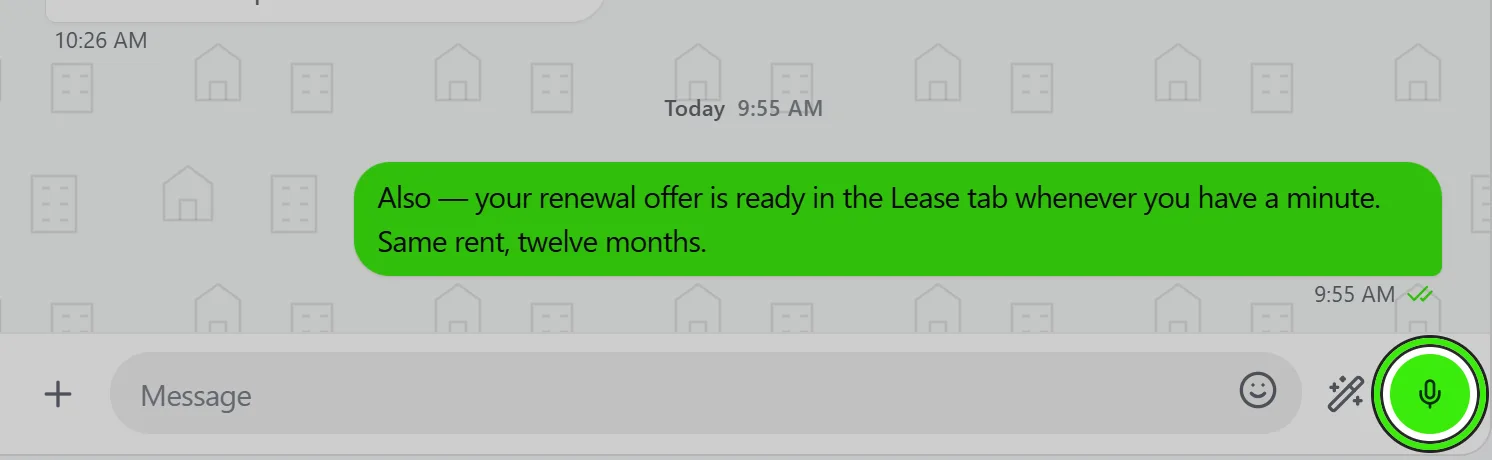
- On the website and on iPhone: hold the microphone button, speak, and release to send. Slide left while holding to throw it away, or slide up to lock the recording so you can stop holding.
- On Android: tap the microphone to start. The recording runs hands-free from the beginning, with a cancel and a send on the bar.
- Pause holds the take where it is and the timer stops with it — the time you spend paused is not part of the recording. The microphone button carries on into the same take, so you can stop to look something up, or let a lorry go past, without starting again. On the website and iPhone it appears once the recording is locked; on Android it is always there.
- While you record, a live meter beside the timer shows how loud the microphone is hearing you, on the iPhone and Android apps. It moves even in a quiet room, so a meter lying perfectly flat means the microphone is not picking anything up.
- A tap too quick to have captured anything is discarded rather than sent as an empty note.
- The first recording on a phone asks for microphone permission. If you decline, the app says so — it does not record silence.
Playing one
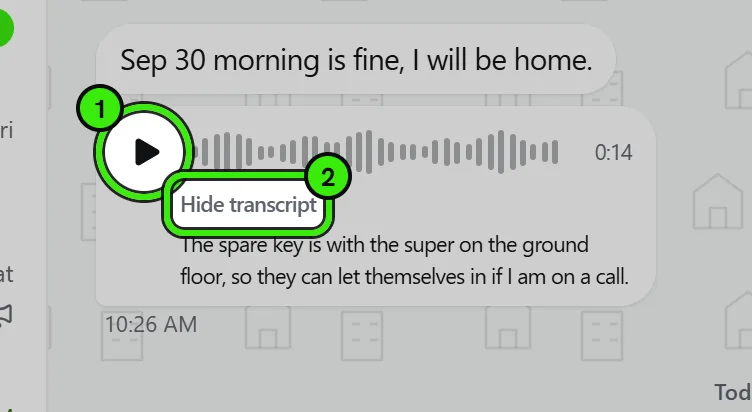
- Tap play. The waveform fills as it plays, and the timer counts up as the note plays.
- The bars are measured from the recording itself, on a loudness scale like a sound meter’s: speech stands tall, pauses sit low, and even the room between the words shows, so two bars are the same height only when the sound really was. Notes recorded before October 2026 are re-measured the same way.
- Drag the waveform to move through a note — the bars are the scrubber, so there is nothing separate to find.
- Starting a second note stops the first, everywhere — one note plays at a time.
- When a note finishes, the next voice note in that conversation plays on its own. A run of five is one thought, and stopping after each to find the next play button is not how anybody listens to them.
- A finished note replays from the start on the next tap.
- Playing a note tells the sender you listened to it. That is reported by the device that actually played it, never inferred from delivery.
Playback speed
The pill beside the waveform cycles 1x → 1.5x → 2x → 0.5x. The speed you pick sticks: the next note plays at it too, on that device, until you change it. 0.5x is last in the cycle on purpose — slowing a note down is the rare case, usually a half-heard address or a bad line, and putting it in the middle would make every speed-up take two taps.
Transcripts
Where a transcript is available it is shown under the note, so a message is usable in a meeting, on a bus, or by somebody who cannot hear it. The transcript is a convenience: the recording is the message.
Formats
Notes recorded on a phone are AAC in an M4A container, which every supported device plays natively. Notes recorded in a desktop browser arrive in a format iPhones cannot decode, so Seayora converts a playable copy at upload time — you do not have to think about it, and the play button works either way.
Frequently asked questions
Is there a length limit on a voice note?
Practical rather than fixed: a note counts toward your Seayora Storage allowance like any other attachment, so very long recordings use it up faster.
Can I play a voice note when my iPhone ringer switch is off?
Yes. Seayora plays voice notes in silent mode deliberately, because a play button that does nothing when the ringer is off is indistinguishable from a broken one.
Does the sender know I listened?
Yes, once you actually play it. Receiving a note is not the same as listening to it, and Seayora only reports the second.
Where are voice notes stored?
With the rest of your conversation media, counting toward Seayora Storage. See the storage article for allowances and what happens when one runs out.
Can I hear a paused recording back before I send it?
Not yet, and that is deliberate rather than missing. Playing a half-finished recording means playing a half-written file, which is reliable in some browsers and not in others — a play button that works on one machine and does nothing on another is worse than one that is not there. Pause, carry on, send and discard all work everywhere.
Does the playback speed follow me between devices?
No. It sticks on the device you set it on. The speed you want depends on where you are listening, and carrying "2x" from a quiet office to a noisy site is not a favor.
Related guides
- In-Platform Messaging
- Seayora Storage: Messages Media and Camera Footage
- Calls & Call Recording
- Filtering Your Inbox
Related features and guides
- In-Platform Messaging — Documentation. How to message tenants, landlords, managers, and service pros inside Seayora with a record of every conversation, send anything later at a time you choose, and draft a reply to an inquiry about your listing.
- Seayora Storage: Messages Media and Camera Footage — Documentation. How the media you send in Messages and the footage your cameras record in Seayora’s cloud are stored, how much is included, what happens when it is full, and how plans and billing work for an account or a company.
- Calls & Call Recording — Documentation. How in-platform calling works, when calls may be recorded, and the consent rules that apply.
- Voice Notes in Messaging — Feature. Record and send voice notes in any Seayora conversation. Transcoded server-side so they play on iPhone, Android, and desktop alike, stored with the thread, and searchable as part of the property record.
- Sign In From Any Device — Feature. Seayora runs in the browser on desktop, laptop, tablet, and phone with one account. Messages, voice notes, call history, documents, and payments stay in sync in realtime across every device you are signed in on.
- Call Recording & Consent — Feature. Where enabled, calls can be recorded or transcribed for quality and dispute resolution — with recordings attached to the conversation and consent obligations made explicit.