Receipt Capture — Photograph a Receipt, Finish the Expense
How to turn a photo or PDF of a receipt, bill or invoice into a draft expense or bill, what Seayora reads from it, how it matches vendors and categories, and where the draft lands.
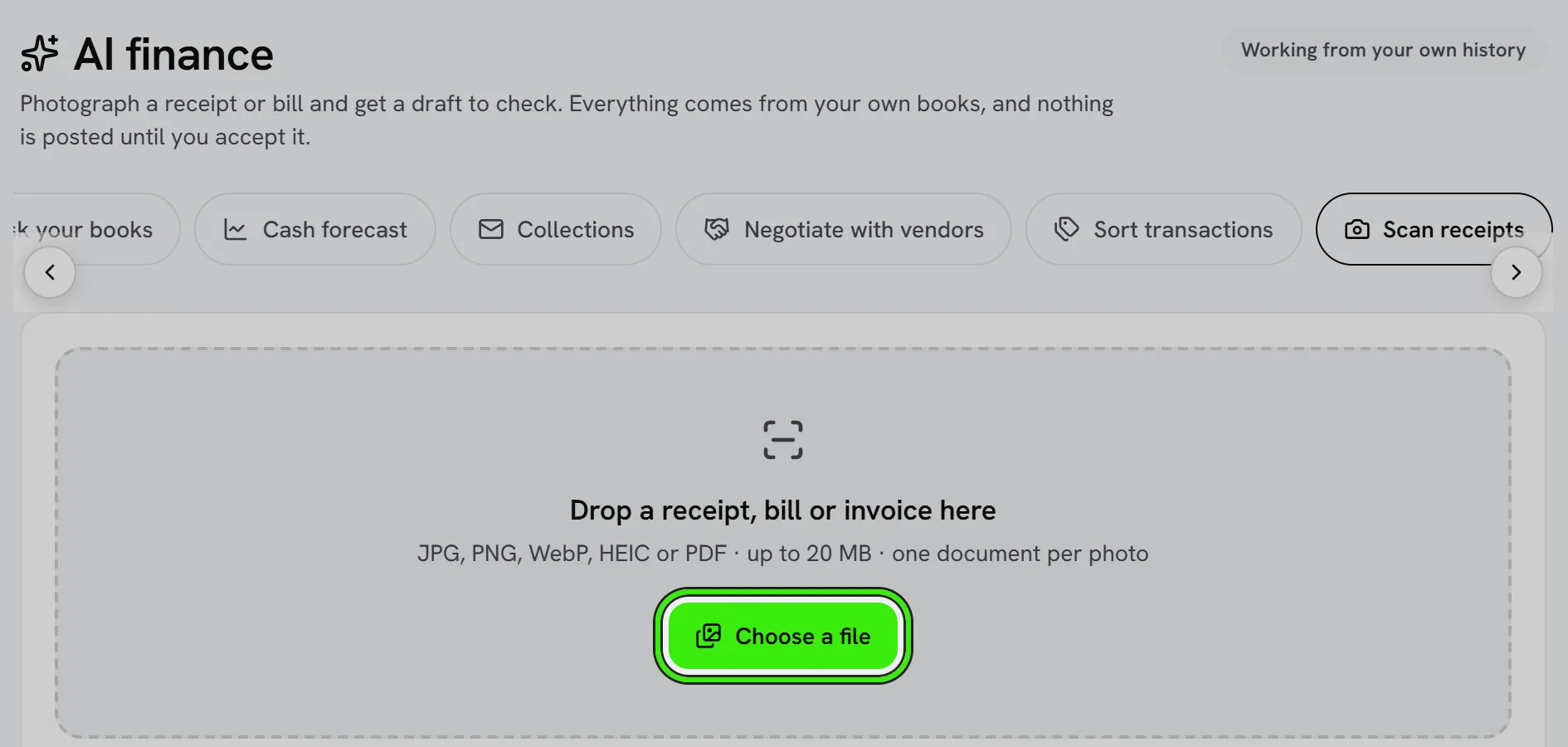
Receipt capture turns a photo of a receipt, a supplier bill or an invoice into a draft you finish and save — into the Expense Center for a landlord, a management company or Seayora's own books, or as a bill in the accounting ledger for a management company or service professional. It is on the Expense Center page ("Scan a receipt"), in the accounting hub under AI Finance → Scan receipts, and on both mobile apps under Tools, where the phone's camera does the photographing.
What happens to the photo
- The image is straightened and resized on the server, then read by the AI provider configured for the platform into a fixed set of fields: vendor, date, subtotal, tax, tip, total, payment method and the last four digits of a card, invoice and reference numbers, a service address, a category guess, and the line items.
- With no AI provider configured, the image is read with on-device text recognition instead and the fields are found by pattern; that draft is marked as such and every field is flagged for checking. PDFs need an AI provider.
- Seayora then checks the arithmetic (does subtotal plus tax equal the total), the date (is it in the future, or years old), and whether anything is missing. Every problem becomes a visible warning on the review screen — nothing is silently corrected.
- Finally it matches what it read against your books: the vendor is matched to one you already have (or offered as a new one), the category comes from that vendor's default, from what you usually file that vendor under, or from the document itself, the property is suggested when the document carries one of your addresses, and an expense with the same amount within three days is shown as a possible duplicate.
The review screen
A draft opens beside the photo with each field marked read, check or missing, based on how confident the reader was and on the warnings above. It is the whole expense form, pre-filled, everywhere: on the website the draft opens in the same form a typed expense uses, and on both phones the review screen now carries the same fields — vendor, date, total, sales tax, how it was paid, the invoice and reference numbers, what it was for, the details, the category or expense account, the vendor already on file, the building, the status, whether it is deductible or rebillable, and your notes. Change anything and save. The photo is attached to the saved expense as its receipt, so the "missing receipts" count on the tax report goes down by one.
Two kinds of edit
Correcting what the DOCUMENT says — the vendor, the date, the total, the tax, how it was paid — is a correction to the reading, and Seayora re-checks the arithmetic and re-runs the suggestions against it. Choosing where it FILES — the title, the category or account, the building, the status, whether it is deductible — is your decision and is recorded as one. The two are kept apart so nothing you decided ever ends up on the record claiming the receipt said it.
Drafts wait for you
A scan creates a draft immediately, and a draft stays until it is saved or discarded — so a receipt photographed at the hardware store on Tuesday can be finished on the laptop on Friday. Pending drafts show on the Expense Center page and in the mobile app; a draft can be re-read if you upload a sharper photo or after an AI provider is configured.
Bills in the ledger
A receipt says it was already paid — a card slip, a till receipt marked paid — so saving it to the ledger creates the bill and records the payment against it, and the bill is filed as paid rather than as money you still owe. The payment comes from the card account whose last four digits match the receipt, or your only card account, or Credit Card if you have none set up; a receipt paid another way comes from your bank account. The confirmation names the account, and you can change it on the payment. A bill that has not been paid is filed as owed and goes through your bill approval rules like one you typed.
When the target is the accounting ledger, saving creates a bill: the vendor is matched or created, the line items become bill lines coded to the suggested expense account (or one you pick), and the tax is added to their cost, spread across those expense accounts — sales tax you pay on a purchase is part of what it cost, never a credit against the sales tax you collect. If the line items do not add up to the document's total — a misread line, a missing one — the bill is created with a single line for the pre-tax figure, because the total on the document is what you actually owe.
Accuracy, privacy and what you are responsible for
- The reader is good, not infallible. A faded thermal receipt, a handwritten total or two receipts in one photo can produce a wrong figure, and a wrong figure that gets saved is a wrong deduction. Check the flagged fields against the photo before saving — that is what the review step is for.
- The photo is sent to the AI provider to be read and is stored with your books as the expense's receipt. Do not photograph documents you would not want stored with your financial records; a card number is never stored, only the last four digits if the receipt prints them.
- A draft is not an expense. Nothing reaches your books, your tax report or your ledger until you save it.
Frequently asked questions
Which file types can I scan?
JPEG, PNG, WebP and HEIC photos, and PDF documents, up to 20 MB. PDFs need an AI provider to be configured; photos work either way.
Why is a field flagged "check"?
Either the reader was not confident about it — a smudged total, an ambiguous date — or a validation rule caught something, such as subtotal plus tax not matching the total. The warning under the field says which.
It says this might be a duplicate. Is it?
Seayora shows any existing expense with the same amount within three days of the receipt's date, and says whether the vendor matches too. The same receipt photographed twice is the usual cause; two identical purchases happen. Open the existing row and decide.
Can I scan from my phone and finish on my computer?
Yes. A scan creates a draft that appears on the Expense Center page and in the mobile app until it is saved or discarded.
Does this file the expense automatically?
No. Every scan is a draft that a person finishes and saves. Seayora never posts to your books on its own.
Why did a card receipt not appear in my unpaid bills?
Because it was paid when you bought it. Saving a paid receipt to the ledger records the bill and its payment together, so it is not counted as money owed — and it is not counted twice when the card statement comes in, as long as you match the statement line to that payment rather than adding it again.
Related guides
- Expense Inbox — Email or Drop Invoices and Receipts Into Your Books
- Bills & Accounts Payable
- Accounting Suite Overview
- Taxes & Sales Tax
- AI Financial Analyst
- Documents & Storage
Related features and guides
- Expense Inbox — Email or Drop Invoices and Receipts Into Your Books — Documentation. A private email address and a drop zone for supplier invoices and receipts: each one is read into a draft, waits in the inbox, and becomes an expense or a bill only when you file it.
- Bills & Accounts Payable — Documentation. How to record vendor bills, route them through approvals, and automate accounts-payable steps.
- Accounting Suite Overview — Documentation. A tour of Seayora’s accounting and bookkeeping tools — invoicing, bills, ledger, bank feeds, reports, automations, and the AI analyst.
- Pricing Tiers, Tax Quotes & Receipt Capture — Feature. Configurable pricing tiers, tax quoting, late fees, promo redemption, PDF invoices, and OCR receipt scanning that turns a photo into a booked expense.
- QuickBooks Integration — Feature. Connect QuickBooks Online and bring the chart of accounts, customers, vendors, items, open balances and past transactions into Seayora — checked against QuickBooks’s own trial balance before anything is written.
- Bank Reconciliation Explained (and Why It Matters) — Guide. What bank reconciliation is, why to do it every month, and how bank feeds and rules turn it into a short review instead of a chore.